⚡ A slow Android phone is often a sign of hidden threats or junk files. A security scan can pinpoint the cause in minutes.
Is your Android phone crawling through apps, freezing mid-scroll, or taking forever to open the camera? You’re not imagining it. Android slowdowns are incredibly common — and almost always fixable.
In this guide, we’ll walk through the 7 most common reasons your Android is running slow, what’s actually happening under the hood, and what you can do about it right now.
7 Reasons Your Android Is Slow
Too Many Apps Running in the Background
Android keeps apps “alive” in the background to make switching feel instant. The problem: every background app consumes RAM, CPU cycles, and battery. Social media apps like Instagram, TikTok, or Facebook are especially aggressive.
What to do: Go to Settings → Apps → See all apps and restrict background activity for apps you don’t use daily.Your Storage Is Almost Full
When internal storage drops below 10–15% free space, Android’s performance degrades noticeably. The OS needs free space to write temp files, cache data, and manage memory efficiently. Photos, videos, and downloads are usually the biggest culprits.
What to do: Go to Settings → Storage. Delete old downloads, clear app caches, and move photos to Google Photos or an SD card.Outdated Software
Running an old version of Android or outdated apps can cause compatibility issues, memory leaks, and security vulnerabilities — all of which contribute to slowdowns. Older software is also less optimized for current hardware.
What to do: Go to Settings → System → Software Update and install any pending updates. Do the same in the Play Store for your apps.A Bloated or Aggressive Launcher
Third-party launchers with heavy animations, large icon packs, and live wallpapers look great — but they can eat through your phone’s resources fast, especially on mid-range devices. Even the default launcher slows down with too many widgets.
What to do: Try a lightweight launcher like Nova Launcher with animations reduced, or go back to your stock launcher and remove unnecessary widgets.Malware or Unwanted Apps Running in the Background
Malicious apps and adware don’t announce themselves — they quietly drain your battery, consume data, and slow down your phone while running invisible processes in the background.
⚠️ Signs Your Android Might Be Infected
- The phone heats up even when idle
- Battery drains faster than usual
- Data usage spikes unexpectedly
- New apps appear that you didn’t install
- Ads pop up outside of browsers
A Worn-Out Battery
As lithium-ion batteries age, they lose the ability to deliver stable power to your phone’s processor. When the CPU demands a burst of power and the battery can’t keep up, the software throttles performance to prevent crashes — the same issue that made headlines with older iPhones.
What to do: Go to Settings → Battery → Battery Health. If it’s below 80%, a battery replacement might be worth it.Too Many Cached Files and Junk Data
Apps accumulate cached data over time — old cache, corrupted temp files, and residual data from uninstalled apps all contribute to slowdowns.
What to do: Go to Settings → Apps, select individual apps, and tap Clear Cache. For a faster solution, a cleaner tool can handle this automatically across all apps at once.How to Run a Security Scan on Android Step by Step
One of the fastest ways to diagnose a slow Android phone is to run a full security scan. Malware, hidden adware, crypto-miners, and suspicious background apps can silently consume CPU power, RAM, storage, mobile data, and battery life. That can make your phone feel old even when the hardware is still perfectly usable.
A scan is especially worth doing if the slowdown appeared suddenly, your phone started overheating, or you noticed pop-ups outside your browser. Follow these steps before assuming the phone needs to be replaced.
Step 1: Install a Trusted Security App
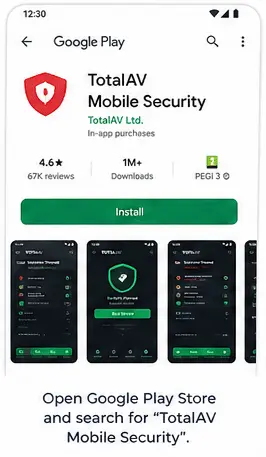
Open the Google Play Store and download a reputable Android security app such as TotalAV Mobile Security. Avoid unknown APK files, fake “RAM booster” tools, and cleaner apps with unrealistic promises.
Step 2: Open the Security Dashboard
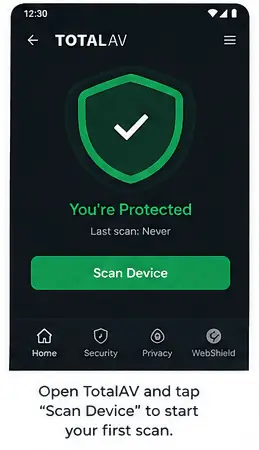
Launch the app and allow the permissions required for scanning installed apps, checking risky files, and identifying suspicious behavior. Without these permissions, the scan may only check part of your device.
<
Step 3: Run a Full Device Scan
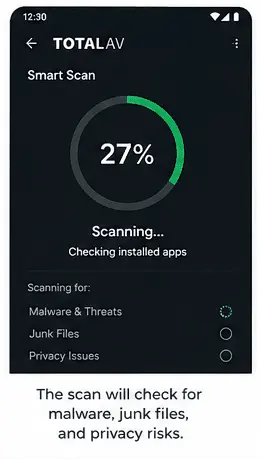
Choose a full scan rather than a quick scan. A full scan checks installed apps, downloaded APK files, temporary files, junk data, suspicious permissions, and potentially unwanted programs.
Depending on your storage size and number of apps, this can take a few minutes. Keep the app open until the scan finishes.
Step 4: Review the Results Carefully
After the scan finishes, look at the flagged items. Common findings include adware apps, duplicate junk files, aggressive background apps, apps with unnecessary permissions, and cached files that are taking up storage.
If the app flags a program you do not recognize, remove or quarantine it. If it flags a legitimate app, review why it was marked before deleting it.
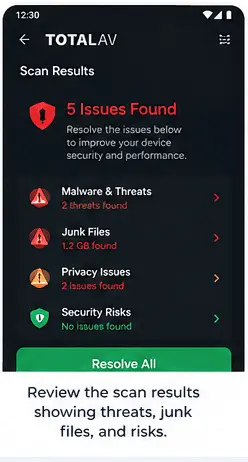
Step 5: Clean Junk Files and Restart
Once suspicious files are removed, clear junk files and cached data. Then restart your phone. A restart clears temporary processes and gives Android a clean baseline after the scan.
Step 6: Monitor Performance for 24 Hours
After cleanup, watch how your phone behaves. Check whether apps open faster, battery drain slows down, and overheating becomes less frequent. If the phone is still extremely slow, the issue may be related to hardware age, battery health, or software corruption.
Real-World Test: We Tested TotalAV on a Samsung Galaxy S23
To see whether a security cleanup could genuinely improve Android performance, we tested TotalAV Mobile Security on a Samsung Galaxy S23 that had been used heavily for more than eight months.
Before the scan
- Apps took 3–5 seconds to open
- Switching between apps felt delayed
- The phone warmed up while idle
- Storage usage was close to 90%
- Over 140 apps were installed
After cleanup
- More than 8 GB of junk files were removed
- Unused apps were deleted
- Background activity was reduced
- App launches felt noticeably faster
- The device temperature normalized
The biggest improvement came from removing junk files, uninstalling unused apps, and stopping aggressive background processes. No cleaner app can turn old hardware into a brand-new flagship, but removing unnecessary load can make Android feel much smoother.
Important: Your results may vary depending on device age, battery health, storage condition, Android version, and how many background apps are installed.
TotalAV vs Google Play Protect: Which Is Better for a Slow Android Phone?
Google Play Protect is built into Android and helps check apps from the Play Store. That makes it useful as a baseline layer of protection. However, it is not designed to be a full cleanup and optimization suite.
If your Android is slow, overheating, or filled with cached files, a dedicated mobile security app can provide extra tools that go beyond basic app verification.
| Feature | TotalAV Mobile Security | Google Play Protect |
|---|---|---|
| Malware scanning | Yes | Basic app checks |
| Real-time threat protection | Yes | Limited |
| Junk file cleanup | Yes | No |
| Duplicate file cleanup | Yes | No |
| Wi-Fi security alerts | Yes | Limited |
| App permission analysis | Yes | Basic |
| Performance-focused cleanup | Yes | No |
| Built into Android | No | Yes |
When Google Play Protect Is Enough
Google Play Protect may be enough if you only install apps from the Play Store, rarely download files, and your phone is not showing suspicious symptoms such as pop-ups, overheating, or unexplained data usage.
When a Dedicated Security App Helps More
A dedicated security app is more useful when your phone suddenly becomes slow, your battery drains unusually fast, you see ads outside the browser, or you want cleanup tools for junk files and duplicate data.
The Fastest Way to Fix a Slow Android Phone
If your phone is consistently slow — especially with unexpected battery drain, overheating, or unusual data usage — there’s a good chance malware or junk software is involved. TotalAV Mobile Security gives you a complete solution in one app:
Rated 4.5/5 on Trustpilot · Top scores from AV-TEST and AV-Comparatives · 30-day money-back guarantee · No commitment. Cancel anytime.
When to Factory Reset Your Android Phone
A factory reset can dramatically improve Android performance, but it should be treated as a last resort. Before wiping your phone, try simpler fixes first: restart the device, update Android, uninstall unused apps, clear cache, free up storage, and run a security scan.
Signs You May Need a Factory Reset
- Your phone freezes constantly even after restarting
- Apps crash repeatedly across different categories
- Malware or adware keeps returning after removal
- The device remains slow after storage cleanup
- Battery drain and overheating continue after troubleshooting
- A system update caused major instability
What a Factory Reset Actually Does
A factory reset removes installed apps, personal files, saved settings, cached data, and many software-level problems. It restores the phone to default software settings, which can remove corrupted configurations and performance-draining apps.
When You Should Not Factory Reset
A reset may not help if the real problem is hardware-related. For example, an old battery, failing storage memory, water damage, or an underpowered processor can still cause lag after the phone is wiped.
Back Up Everything First
Before resetting, back up photos, videos, contacts, passwords, authentication apps, and important files. A factory reset erases the phone, so anything not backed up may be lost.
How to Factory Reset Android
- Open Settings
- Tap System
- Select Reset options
- Tap Erase all data (factory reset)
- Confirm the reset and follow the on-screen instructions
Tip: After the reset, reinstall apps slowly instead of restoring everything at once. This makes it easier to identify whether one app was causing the slowdown.
More Ways to Speed Up an Android Phone
If your phone is not infected but still feels sluggish, use these practical fixes to reduce system load and free up resources.
Remove Apps You No Longer Use
Unused apps can still store data, run background services, send notifications, and consume storage. If you have not opened an app in the last 30–60 days, uninstall it.
Clear App Cache Manually
Social media, streaming, browser, and messaging apps often build large cache folders. Go to Settings → Apps → choose an app → Storage → Clear Cache.
Keep at Least 10–15% Storage Free
Android needs free storage for temporary files, updates, app cache, and memory management. When storage is nearly full, the phone has less room to operate efficiently.
Restart Your Phone Weekly
A weekly restart clears temporary memory usage, closes stuck background processes, and helps Android reload system services cleanly.
Disable Heavy Widgets and Live Wallpapers
Animated wallpapers, weather widgets, social widgets, and always-refreshing home screen tools can drain battery and slow down older devices.
Frequently Asked Questions
Why did my Android suddenly get slow?
Sudden slowdowns are often caused by a recent app update, a new background process, low storage, or — in some cases — malware. Running a security scan is a good first step.
Can malware really slow down an Android phone?
Absolutely. Malware and adware can run hidden background processes that consume CPU, RAM, battery, and mobile data. Users often mistake the symptoms for normal aging.
Does clearing cache improve Android performance?
Yes. Clearing cache can remove temporary files, free up storage space, and fix corrupted app data that may be slowing down specific apps.
Is Google Play Protect enough for Android security?
Google Play Protect provides useful built-in protection, but dedicated security apps may offer deeper malware scanning, Wi-Fi alerts, junk cleanup, and performance tools.
Is TotalAV safe for Android?
Yes. TotalAV is a legitimate antivirus and mobile security app. It can scan for threats, clean junk files, and help protect your phone while browsing.
Does a factory reset fix a slow Android?
Yes, it can — but it should be a last resort. Try clearing cache, uninstalling unused apps, freeing storage, and running a security scan first.
Why is my Android overheating and lagging?
Overheating and lag can be caused by heavy background apps, malware, low storage, battery degradation, live wallpapers, or hardware problems.